

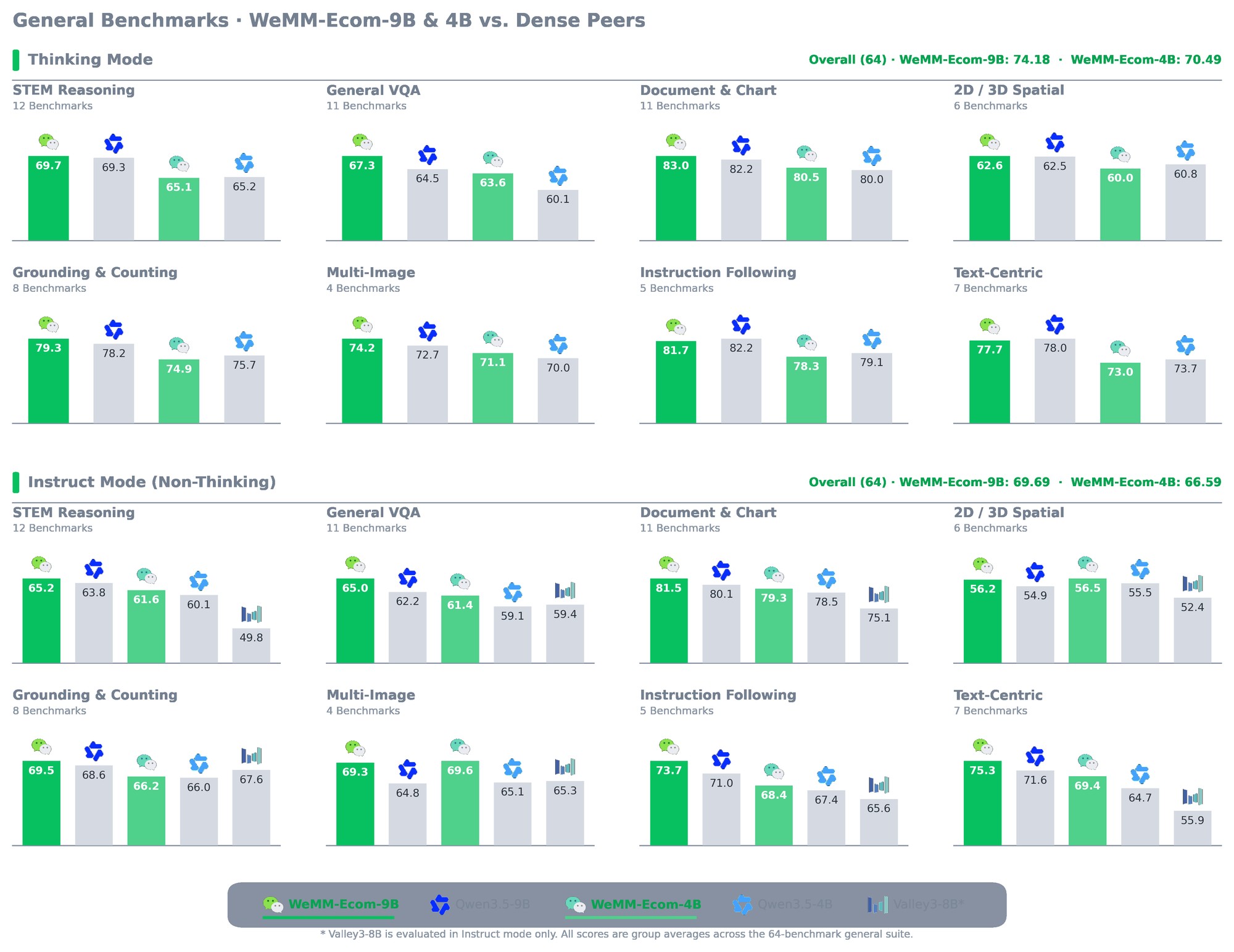
要做 WeMM-Ecom 接入配置 ,可按官方文档用 Transformers 本地推理,或用 vLLM、llama.cpp 起服务。下文按官方步骤整理,本站未逐项实测。
准备工作与权重选择
先确认要跑的规格和格式。官方 Serving Guide 的对照如下:
| 格式 | 官方说明 | 可用运行时 |
|---|---|---|
| BF16 | 未量化的 bfloat16 safetensors | Transformers(>=5.3.0)、vLLM(>=0.18.0)、SGLang(>=0.5.9) |
| FP8 Block128 | E4M3、128×128 block-scaled 权重,激活为动态量化;视觉塔为 BF16 | vLLM(>=0.18.0)或 SGLang,需支持 FP8 的 GPU(官方写明 SM89/SM90+) |
| GPTQ W4A16 | compressed-tensors 的 4-bit 权重(group size 128);视觉塔为 BF16 | vLLM(>=0.18.0) |
| GGUF Q4_K_M | 语言模型 *.gguf 加 mmproj-F16.gguf |
llama.cpp(llama-server,官方要求 commit e574a17 及以后),可走 CPU 或 CUDA |
权重在 Hugging Face 的 WeMM-Ecom 集合 ,例如 tencent/WeMM-Ecom-2B、tencent/WeMM-Ecom-9B-FP8、tencent/WeMM-Ecom-2B-GGUF。仓库源码为 Apache-2.0,各权重要遵守对应仓库的 LICENSE。官方文档没有给出各规格显存占用,需要按型号和量化格式自行评估。
关于这套模型的规格、评测和开源时间,可先看 WeMM-Ecom 开源介绍 。如果还要在笔记本上跑其他轻量开源模型,也可以对照本站的 Inkling 2 Mini 接入配置教程 。同属腾讯系、但走云端 API 的三维生成,见 Hy3D 3.6 接入配置教程 。
步骤一:用 Transformers 本地推理
官方快速上手以 2B 为例。先克隆 Tencent/WeMM-Ecom,安装仓库提供的依赖(requirements.txt 写明 torch>=2.6.0、transformers>=5.3.0、accelerate>=1.1.0 等),再运行示例脚本:
pip install -r requirements.txt

python examples/transformers_inference.py   --model tencent/WeMM-Ecom-2B   --image assets/examples/product_0.jpg   --image assets/examples/product_1.jpg   --prompt "请简要描述该商品的品类、包装材质以及图中茶碗的数量。"
加上 --no-thinking 会切换到 Instruct(非思考)模式。官方示例用的两张图是同一款罐装绿茶的不同视角:一张是盖上盖的「LOOSE-LEAF GREEN TEA / 绿茶 / 0.1kg」铁罐,另一张是打开后露出茶叶的样子。
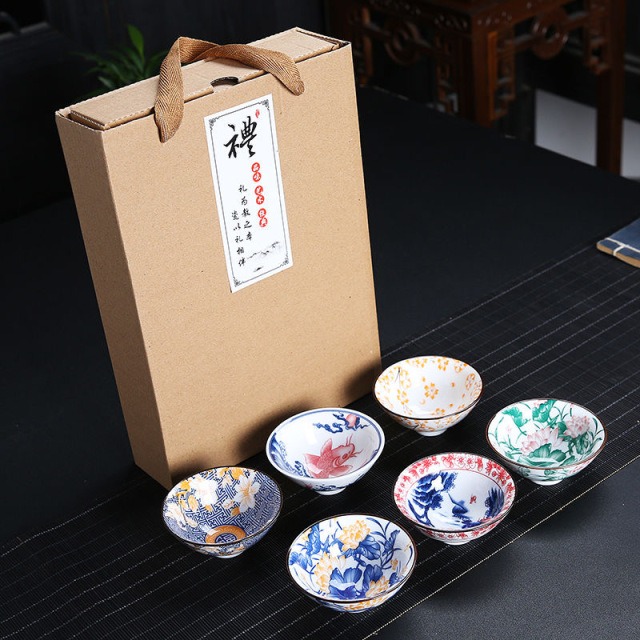
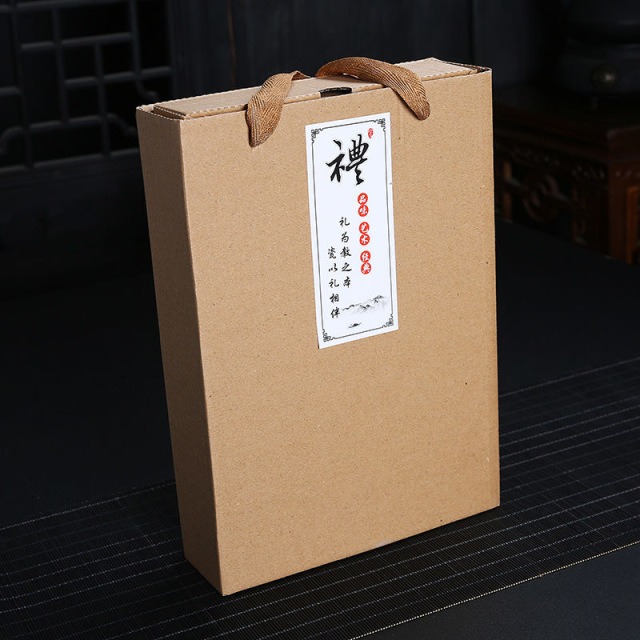
如果要在自己的 Python 代码里调用,官方给出的写法是:用 AutoProcessor 和 AutoModelForImageTextToText 加载模型,把图片和文本放进 chat messages,再通过 processor.apply_chat_template(..., enable_thinking=False) 编码后调用 model.generate。下面的参数与官方 README 示例一致,采样用的是 Instruct 模式推荐值:
import torch
from transformers import AutoModelForImageTextToText, AutoProcessor

model_id = "tencent/WeMM-Ecom-2B"
processor = AutoProcessor.from_pretrained(model_id)
model = AutoModelForImageTextToText.from_pretrained(model_id, dtype=torch.bfloat16, device_map="auto")

messages = [
    {
        "role": "user",
        "content": [{"type": "image", "image": "assets/examples/product_0.jpg"},
            {"type": "image", "image": "assets/examples/product_1.jpg"},
            {"type": "text", "text": "请简要描述该商品。"},
        ],
    }
]
inputs = processor.apply_chat_template(
    messages, tokenize=True, return_dict=True, return_tensors="pt",
    add_generation_prompt=True, enable_thinking=False,
).to(model.device)
with torch.inference_mode():
    output = model.generate(**inputs, max_new_tokens=4096, do_sample=True, temperature=0.7, top_p=0.8, top_k=20)
print(processor.decode(output[0, inputs.input_ids.shape[1]:], skip_special_tokens=True))
步骤二:用 vLLM 或 SGLang 部署 API
要把 WeMM-Ecom 建成兼容 OpenAI 的 HTTP 接口,官方推荐 vLLM 或 SGLang,并加上 --reasoning-parser qwen3。下面是 Serving Guide 里的 9B FP8 示例:
vllm serve tencent/WeMM-Ecom-9B-FP8 --served-model-name WeMM-Ecom --reasoning-parser qwen3 --host 0.0.0.0 --port 8000 --max-model-len 32768 多卡时再加 --tensor-parallel-size 2(或更大)。如果用的是 WeMM-Ecom-35B-A3B-GPTQ,官方要求额外加上 --moe-backend marlin,或直接运行仓库脚本 bash scripts/serve_vllm.sh tencent/WeMM-Ecom-35B-A3B-GPTQ 1 --max-model-len 32768(该脚本会为这个 GPTQ 检查点自动补上 --moe-backend marlin)。
SGLang 的官方示例是:
python -m sglang.launch_server --model-path tencent/WeMM-Ecom-9B --served-model-name WeMM-Ecom --reasoning-parser qwen3 --host 0.0.0.0 --port 8000 --context-length 32768 多卡可用 bash scripts/serve_sglang.sh tencent/WeMM-Ecom-35B-A3B 2 --context-length 32768。
服务起来后,可用官方提供的客户端脚本调用。Thinking 模式和 Instruct 模式的示例如下,图片路径仍用仓库里的示例商品图:
python examples/openai_client.py   --base-url http://127.0.0.1:8000/v1   --model WeMM-Ecom   --image assets/examples/product_0.jpg   --image assets/examples/product_1.jpg   --prompt "Compare the two product views and summarize the key selling points."

python examples/openai_client.py   --base-url http://127.0.0.1:8000/v1   --model WeMM-Ecom   --no-thinking   --image assets/examples/product_0.jpg   --image assets/examples/product_1.jpg   --prompt "Extract the product category, item count, and packaging material."
也可以只用文本,例如官方示例会比较两个商品标题是否指向同一 SKU:--no-thinking --prompt "Do'Loose-Leaf Green Tea 0.1 kg tin'and'Loose-Leaf Green Tea 100 g tin (single pack)'refer to the same SKU?"。
步骤三:用 llama.cpp 在本地运行 GGUF
每个 -GGUF 仓库里都有语言模型文件(如 WeMM-Ecom-2B-GGUF.gguf)和视觉投影 mmproj-F16.gguf,两个都要加载。官方要求使用较新的 llama.cpp(commit e574a17 及以后),需要 GPU 时以 -DGGML_CUDA=ON 编译,然后启动 llama-server:
hf download tencent/WeMM-Ecom-2B-GGUF --local-dir ./WeMM-Ecom-2B-GGUF

llama-server -m ./WeMM-Ecom-2B-GGUF/WeMM-Ecom-2B-GGUF.gguf --mmproj ./WeMM-Ecom-2B-GGUF/mmproj-F16.gguf --alias WeMM-Ecom --host 0.0.0.0 --port 8000 -ngl 999 --ctx-size 16384 --image-min-tokens 64 --image-max-tokens 16384 --reasoning off --reasoning-format deepseek 官方说明里还有几点:--image-min-tokens 64 --image-max-tokens 16384 用来对齐 Hugging Face 处理器的图像 token 范围;只要 CPU 推理时把 -ngl 改成 0;也可以用仓库脚本 bash scripts/serve_llamacpp.sh ./WeMM-Ecom-2B-GGUF --reasoning off。
思考模式与采样参数
在 vLLM 和 SGLang 上,官方建议在每次请求里明确传入 chat_template_kwargs: {"enable_thinking": true}(Thinking)或 {"enable_thinking": false}(Instruct)。原因是不同规格的模板默认值不一样:0.8B 和 2B 默认 Instruct,4B、9B 和 35B-A3B 默认 Thinking。llama-server 则要在启动时用 --reasoning on 或 --reasoning off 固定下来——官方写明,较新的 llama.cpp 会忽略请求体里的 enable_thinking。另外,近期 llama.cpp 默认 --reasoning auto,只要模板支持就会注入 enable_thinking=true(包括 0.8B 和 2B),所以不要只靠 --reasoning-budget 0 来关思考模式。
开启 --reasoning-parser qwen3(vLLM / SGLang)或 --reasoning-format deepseek(llama-server)后,思考过程出现在 choices[0].message.reasoning_content,最终答复在 choices[0].message.content。
用 curl 调用 vLLM 或 SGLang 时,官方示例如下(请把图片 URL 换成自己的可访问地址):
curl -sS http://127.0.0.1:8000/v1/chat/completions   -H 'Content-Type: application/json'   -d '{"model":"WeMM-Ecom","messages": [
      {
        "role": "user",
        "content": [{"type": "image_url", "image_url": {"url": "https://example.com/product.jpg"}},
          {"type": "text", "text": "Extract the brand, packaging type, and net weight."}
        ]
      }
    ],
    "max_tokens": 8192,
    "temperature": 0.7,
    "top_p": 0.8,
    "presence_penalty": 1.5,
    "top_k": 20,
    "min_p": 0.0,
    "repetition_penalty": 1.0,
    "chat_template_kwargs": {"enable_thinking": false}
  }'
官方推荐的采样参数如下。Thinking 模式下还需把 max_tokens 设为不小于 8192。
| 模式 | enable_thinking | 官方推荐参数 |
|---|---|---|
| Thinking | True | temperature=1.0,top_p=0.95,top_k=20,min_p=0.0,presence_penalty=1.5,repetition_penalty=1.0 |
| Instruct | False | temperature=0.7,top_p=0.8,top_k=20,min_p=0.0,presence_penalty=1.5,repetition_penalty=1.0 |
常见报错与解决
以下条目整理自官方 Serving Guide 和 README,不是本站逐项复现后的结论。
- FP8 加载失败,提示
cuLibraryGetKernelCount: 官方说明常见于较旧的 CUDA 驱动,可设置环境变量VLLM_USE_DEEP_GEMM=0。 - FlashInfer sampler JIT 失败: 设置
VLLM_USE_FLASHINFER_SAMPLER=0。 - 35B-A3B 的 GPTQ 检查点无法正常在 vLLM 里跑: 确认是否漏了
--moe-backend marlin。 - llama.cpp 里关不掉思考模式,或 0.8B/2B 也在思考: 在启动时明确加
--reasoning off或--reasoning on,不要依赖请求里的enable_thinking,也不要只设--reasoning-budget 0。 - GGUF 能出文字、看不懂图: 检查是否同时加载了
mmproj-F16.gguf,以及--image-min-tokens/--image-max-tokens是否按官方示例设置。 - Transformers 报架构或版本错误: 确认
transformers>=5.3.0。官方强调直接走上游实现,不需要额外补丁。
必须自己准备 GPU 吗?
官方给 llama.cpp 写了 CPU 跑法(-ngl 0),适合 0.8B 或 2B 的 GGUF。vLLM 和 SGLang 的示例面向 GPU;FP8 还要求支持 FP8 的型号。文档未列出显存对照,大规格建议先看权重体积再决定。
0.8B、2B 默认是思考模式吗?
不是。官方写明 0.8B 和 2B 的模板默认是 Instruct,4B 及以上默认是 Thinking。无论哪一档,vLLM / SGLang 都建议在请求里显式传入 enable_thinking;llama.cpp 则在启动参数里固定。
信息来源
- GitHub:Tencent/WeMM-Ecom
- WeMM-Ecom 中文 README
- 官方 Serving Guide
- 官方 Examples 说明
- Hugging Face:tencent/wemm-ecom 模型集合



 微信扫码关注「狠活 AI」


